


No feedback found for this session
Getting data into SQL
SQL
beginner
NoteAbout this course
- This course is designed as a basic introduction to SQL delivered as live interactive sessions on Teams
- It’s intended as a light introduction for users with good general digital skills (broadly level 2 in the Digital and Data Capability Framework)
- It’s heavily based on the excellent W3 schools introductory SQL course
- If you’re looking for a resource to use to support independent study, W3 schools is a better option than this page
- this material is largely intended to support our live interactive training sessions
- we use posit.cloud for this course. Although that platform is mainly meant for analysts writing R code, we can trick it to allow us to practice our SQL skills
About this session
This session is all about getting data into, and out of SQL. We’ll look at:
- adding data to an existing table, either row-by-row, or at larger scale
- discussing how to update data, including adding, removing, and renaming columns
- and showing how to create new tables
Setup
- You will need a free posit.cloud account. Please set this up and check that you have access before the session begins
- Once you’ve logged-in to posit.cloud, please create a new Rstudio project from Github Repository
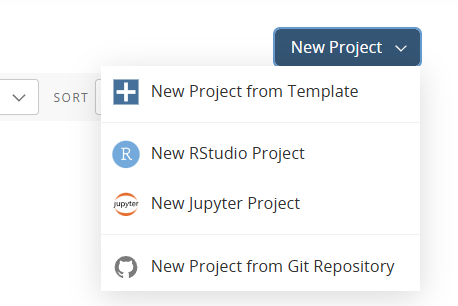
- Supply the following URL when prompted: https://github.com/NES-DEW/KIND_sql_intro/
- Once the project is deployed, clear your Environment (broom icon in the environment pane)
- Then open the
s2_setup.Rscript by from the bottom-right hand files pane - Click the
Sourcebutton at the top right-hand corner of the source pane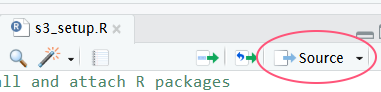
- Then open the
s2_data.sqlscript from the files pane, andCtrl+Shift+Entertwice to preview your data for this session
NoteManual setup instructions
You will need a free posit.cloud account. Please set this up and check that you have access before the session begins
Once you’ve logged-in to posit.cloud, please create a new Rstudio project
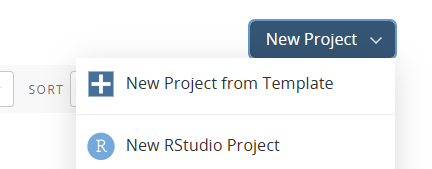
In that project, create a new R script:

Copy and paste the following R code into that script:
## install and attach R packages
pkg <- c("dbplyr", "RSQLite", "palmerpenguins")
install.packages(setdiff(pkg, rownames(installed.packages())))

library(dbplyr)
library(dplyr)
library(palmerpenguins)

conn <- src_memdb() # create an sqlite db in memory- save your script and click the
Sourcebutton- that will create a simple SQL database in memory
- now create a new SQL script (again, from the
Filemenu) - delete all the pre-populated lines of code, as follows:
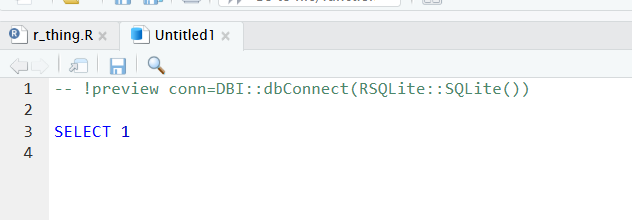
- to connect with our SQL db in memory, add the following line to the head of your SQL script:
-- !preview conn=src_memdb()$con- finally, save your SQL script (any file name is fine)
Getting started
- in this session, unlike the previous one, we’ll start with an empty SQL database
- we’ll create a table in that db, and add some data to it
CREATE TABLE clients (chi varchar(10) NOT NULL,
                      name varchar(255),
                      birthdate date,
PRIMARY KEY (chi));- you can think of a SQL table as a container for the four empty columns of data we’ve created
- note that we have told SQL what kind of data our columns will contain. Some of the most common examples include:
| type | what |
|---|---|
| CHAR | fixed length char |
| VARCHAR | variable length char |
| INT | whole number |
| DOUBLE | decimal number |
| DATE | date |
| DATETIME | date-time |
- now test that your
clientstable has been created:
SELECT * FROM clients;| chi | name | birthdate |
|---|
This table will be empty at first. Our next step is to add some data to that table to make it more useful:
Adding data
insert data into your table using the INSERT INTO keyword:
INSERT INTO clients VALUES ("1204851425", "Mr Odds", "1985-04-12");and then check:
SELECT * FROM clients;| chi | name | birthdate |
|---|---|---|
| 1204851425 | Mr Odds | 1985-04-12 |
It’s good practice to specify the columns by name, especially if you need to include partial data:
INSERT INTO clients (chi, birthdate) VALUES ("0701720842", "1972-01-07");SELECT * FROM clients;| chi | name | birthdate |
|---|---|---|
| 1204851425 | Mr Odds | 1985-04-12 |
| 0701720842 | NA | 1972-01-07 |
Primary keys
- when we wrote
PRIMARY KEY (chi)while creating our table, we made the chi column special: this is the primary key of the table lives - primary keys are unique: they identify the distinct rows of the table
- your SQL will fall over if you try and repeat chi values
Adding multiple rows of data
- largely just a matter of chaining to gether multiple sets of values
INSERT INTO clients VALUES
  ("0411016548", "The Moog", "2001-11-04"),
  ("3003627534", "One McIrey", "1962-03-30"),
  ("2407864568", "Dr Stamps", "1986-07-24");
SELECT * FROM clients;| chi | name | birthdate |
|---|---|---|
| 1204851425 | Mr Odds | 1985-04-12 |
| 0701720842 | NA | 1972-01-07 |
| 0411016548 | The Moog | 2001-11-04 |
| 3003627534 | One McIrey | 1962-03-30 |
| 2407864568 | Dr Stamps | 1986-07-24 |
Updating
- one of our clients has no name…
UPDATE clients
  SET name = "David Lemon"
  WHERE chi = "0701720842";
SELECT * FROM clients;| chi | name | birthdate |
|---|---|---|
| 1204851425 | Mr Odds | 1985-04-12 |
| 0701720842 | David Lemon | 1972-01-07 |
| 0411016548 | The Moog | 2001-11-04 |
| 3003627534 | One McIrey | 1962-03-30 |
| 2407864568 | Dr Stamps | 1986-07-24 |
Adding cols
- let’s add some extra columns:
ALTER TABLE clients ADD length INT(2);- we can set a single value for this new column
UPDATE clients
  SET length = (10);
| chi | name | birthdate | length |
|---|---|---|---|
| 1204851425 | Mr Odds | 1985-04-12 | 10 |
| 0701720842 | David Lemon | 1972-01-07 | 10 |
| 0411016548 | The Moog | 2001-11-04 | 10 |
| 3003627534 | One McIrey | 1962-03-30 | 10 |
| 2407864568 | Dr Stamps | 1986-07-24 | 10 |
- setting individual values is much more messy:
UPDATE clients
  SET length = 12
WHERE name = "Mr Odds" OR name = "Dr Stamps";| chi | name | birthdate | length |
|---|---|---|---|
| 1204851425 | Mr Odds | 1985-04-12 | 12 |
| 0701720842 | David Lemon | 1972-01-07 | 10 |
| 0411016548 | The Moog | 2001-11-04 | 10 |
| 3003627534 | One McIrey | 1962-03-30 | 10 |
| 2407864568 | Dr Stamps | 1986-07-24 | 12 |
Remove a column
ALTER TABLE clients DROP length;| chi | name | birthdate |
|---|---|---|
| 1204851425 | Mr Odds | 1985-04-12 |
| 0701720842 | David Lemon | 1972-01-07 |
| 0411016548 | The Moog | 2001-11-04 |
| 3003627534 | One McIrey | 1962-03-30 |
| 2407864568 | Dr Stamps | 1986-07-24 |
Renaming cols
- not as easy as might be liked, and highly dialect-y
Note about uploading
- depends on your local system, no generic SQL advice
- refer to the R and SQL session
Create tables
- most real-life SQL projects are multi-table
- we’ll explore this in more detail in the joins session
- but as an introduction, creating additional tables is exactly the same as creating a first table
CREATE TABLE gps (chi varchar(10) NOT NULL,
                      gp varchar(255),
                      PRIMARY KEY (chi));

INSERT INTO gps VALUES
  ("1204851425", "Dr Smith"),
  ("0701720842", "Dr Patel"),
  ("0411016548", "Dr Hamoda"),
  ("3003627534", "Dr Clarke"),
  ("2407864568", "Dr Johal");

SELECT * FROM gps;
SQL query summary
Code
CREATE TABLE clients (chi varchar(10) NOT NULL,
                      name varchar(255),
                      birthdate date,
                      PRIMARY KEY (chi)); -- creating a clients table

SELECT * FROM clients; -- checking the clients table exists

INSERT INTO clients VALUES ("1204851425", "Mr Odds", "1985-04-12"); -- add a row to clients

INSERT INTO clients (chi, birthdate) VALUES ("0701720842", "1972-01-07"); -- insert values by name

INSERT INTO clients VALUES
  ("0411016548", "The Moog", "2001-11-04"),
  ("3003627534", "One McIrey", "1962-03-30"),
  ("2407864568", "Dr Stamps", "1986-07-24"); -- adding multiple rows of data

UPDATE clients
  SET name = "David Lemon"
  WHERE chi = "0701720842"; -- updating a row with no name

ALTER TABLE clients ADD length INT(2); -- adding a column

UPDATE clients SET length = (10); -- set a single fixed value for each row in that new column

UPDATE clients
  SET length = 12
  WHERE name = "Mr Odds" OR name = "Dr Stamps"; -- setting new values based on existing values

ALTER TABLE clients DROP length; -- remove a column

CREATE TABLE gps (chi varchar(10) NOT NULL,
                      gp varchar(255),
                      PRIMARY KEY (chi)); -- create a new empty table

INSERT INTO gps VALUES
  ("1204851425", "Dr Smith"),
  ("0701720842", "Dr Patel"),
  ("0411016548", "Dr Hamoda"),
  ("3003627534", "Dr Clarke"),
  ("2407864568", "Dr Johal"); -- insert some values

SELECT * FROM gps; -- preview those values
Acknowledgements
Like all our courses and sessions, this is a team effort, and I thank the network as a whole for their encouragements and contributions. Specific thanks in this case go to Ben Harley (PHS), Amanda King (NHS GGC), Steven Knapman (NHS Fife), and James McMahon (Public Health Scotland), and to the members of the pilot cohort for this session.